 Mosaizer Pro 12 -
Help |
Mosaizer Pro 12 -
Help
Mosaic automation
In case multiple mosaics must be made from various
sources and libraries, there are few basic automation ('batch') controls
available. To start the automation first select 'Show
automation settings' from the main menu 'Special
functions'. You
will now see the familiar pop-up settings window. Steps for automating the mosaic
creation Step 1: select the
source for automation
Step 2: select the
source files folder or
the libraries Step 3: press 'Start automation' 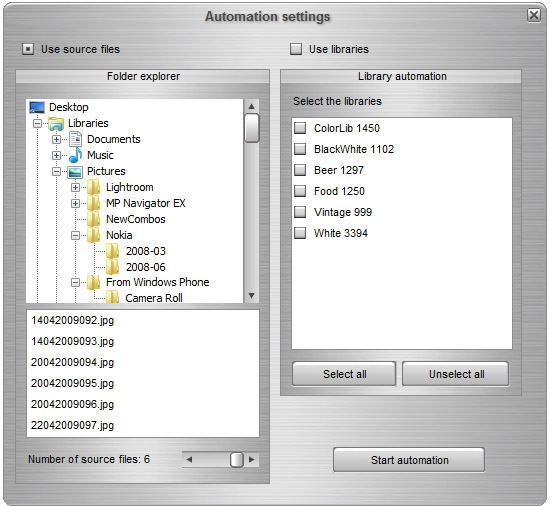
You need to indicate if you
want to use multiple source files (from which the mosaic is made) or to use
multiple libraries for the current source file. You cannot choose both. So
check either the radio button for 'Use source
files' or for 'Use libraries'.
In case you want to use source files for automation you have
to use
the explorer on the left side of the settings window to navigate to the folder
that contains the source files. It will use all the valid files in that folder.
Only .jpg, .jpeg, .bmp and .png files are used for sources. In case of .png
files with transparency the transparency is used in the mosaic result. At least two files
must be available in the folder to start automation.
In
case you have selected libraries for the automation you can check and uncheck
the libraries in the window on the right. Use the buttons below to select all or
deselect all. You need to at least select two libraries to start automation.
You are prompted
to provide the name for the series of mosaic results; then the
creation starts. The default location for saving is the 'My
Pictures' folder (part of 'My Documents' or
'User Documents'. After completion the windows
explorer for that location will be opened, showing the mosaic result
pictures.
TIP: In case of automation with libraries the latest
library will remain the current library. In case you continue with normal mosaic
creation make sure you know which library is selected. The same is valid for the
source files: the last automated source file will remain as the current source
file. The files in the folder will not
be added to the source file history
list.