 Dynamic Mosaic -
Help Dynamic Mosaic -
Help |
Dynamic Mosaic -
Help
Recording
The
recording option is a feature to record the mosaic viewer as a movie. There are
two viewers: dynamic mosaic and flying tiles in/out and shuffle into a shape.
The second viewer is for commercials and still pictures between each mosaic
session/sequence when e.g. completed. The recorder only records the
viewer of the dynamic mosaic. In case a commercial is shown, the recorder will
not record it, but the movie will continue to record. In that case make sure
your commercials have been disabled. Recording preparations To
successfully record a movie you need
to assure the following: Recording settings
There are a few controls for
the recorder. These are:
Install an appropriate codec in your Windows system.
Good codecs are Xvid and DivX. Some systems also support X.264, but since we
have some unresolved issues, we don't support X.64 VfW at the moment. To make
X.264 movies you better first record in XVid or DivX, and then convert into
X.264 (.mp4 format), e.g. with the freeware 'ffmpeg' application. IMPORTANT:
we can only record using DShow, i.e. Windows native, so the high quality
X.264 and H.264 (e.g. with FFMPEG, saved as .mp4) is not possible. Good
results for VfW ('Video for Windows') is installing the Xvid codec
(https://www.xvid.com/download/
). This codec is almost as good as X.264,
and it's a true Windows codec that is recognized by Windows Video Player when
installed in your system.
Designate a recording folder. This done from the admin
tab, File Locations > Recording (see help docs on 'File locations').
Without a designated folder you will get an
error message ('Unable to create AVI file').
Close non essential
applications. If you leave RAM heacy application open, some frames may be
dropped in recording. Also avoid watching movies, youtube thingies, or
play a game on the same system. Music won't be a problem though because it
doesn't record sound. Also better close internet browsers. They tend to
consume loads of RAM.
Assure that there is
enough diskspace for recording. In case you decide to record in uncompressed
HD resolution (e.g. 2560x1600) you may quickly run out of disk
space.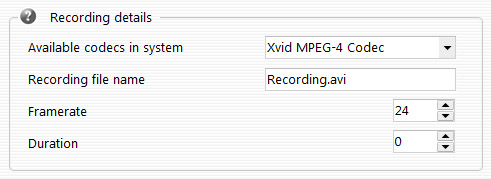
Available
codecs in the system: select the codec you want to use for the recording.
Only codecs that are available in the windows system - and are installed as a
system codec - will be shown here. Codecs installed e.g. via VLC player will not
be shown and will not work either. the default codec is Microsoft Video 1. A very reliable, but old-fashioned codec with marginal quality. You
are strongly encouraged to install XVid or DivX codecs and use these
instead. The widely spread codec for X.264 can be downloaded from Sourceforge but is
not supported by Dynamic
Mosaic.Recording
file name: the name of the
file to be recorded. the default name is 'Recording.avi'
. The file extentions is antomatically added (.avi) but can also
be indicated here. The file extension will always be .avi. The location of the recorded
movie is indicated in the 'Locations'
tab of the Admin tab (i.e. the Recording
folder).Framerate: the recording framerate. The higher the
framerate (e.g. 30 fps) the more your system will require CPU power. The
framerate is not equal the frequency of the animations. The framerate frequency
follows its own time ticker.Duration: the duration of a recording
After the indicated time (in seconds) the recording will automatically be stopped. When the indicated
value is zero there is no limit, and the user has to manually stop the
recording.When you
press the 'Start Recording' button you are always
asked 'Are you sure' to avoid that accidental
recordings are made.