Dynamic Mosaic -
Help Dynamic Mosaic -
Help |
Dynamic Mosaic -
Help
Camera
The
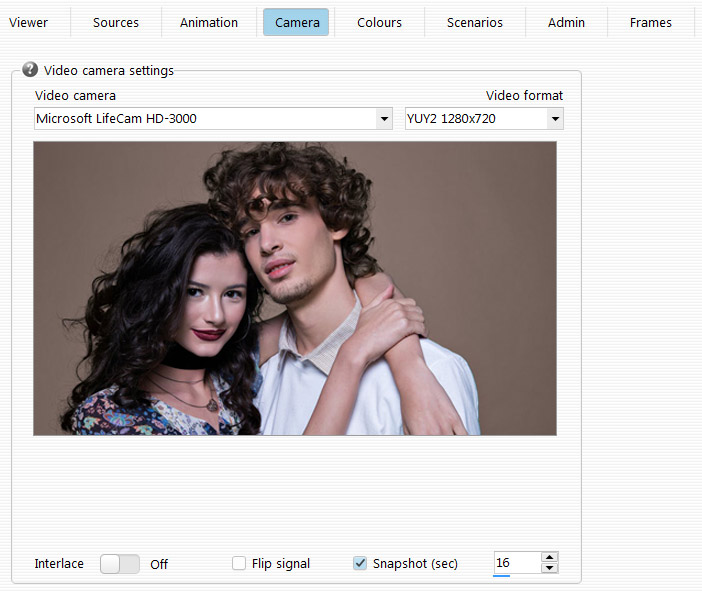
camera tab shows the interface to the optional (web) camera in the system. Since
most laptops have a built-in camera the default cam will be that of the laptop.
In many cases an external cam needs to be attached. Currently only USB cams are
recognized (not IEEE cams). The resolution of the camera should not be set too
high because showing e.g. a HD quality picture may require too much CPU that the
mosaic creation will be noticeably slower and 'jerkier'. In case of doubt: a
resolution of 800x600 is good enough for monitor shows, where the screen
resolution is usually comparable to 1024 or 1280 pixels at most. As a rule of
thumb the resolution of the cam should then be half the amount of pixels of the
monitor. Usually the most simple web cam with
a modest resolution will
be a good solution to avoid the CPU load. When high-end web cams are used,
it's highly recommended to use Intel i5 or even i7 CPU systems (or equivalent AMD
systems). The following options are
available: To take a
snapshot, activate the option, and set the snapshot
interval (in seconds). When the initial mosaic has been created and the tile
placement is active, the snapshot timer is triggered. The progress is seen
by the little blue line (see image below). When the interval value is reached,
the snapshot image will be saved in the Booth folder, and immediately processed
into the mosaic viewer. 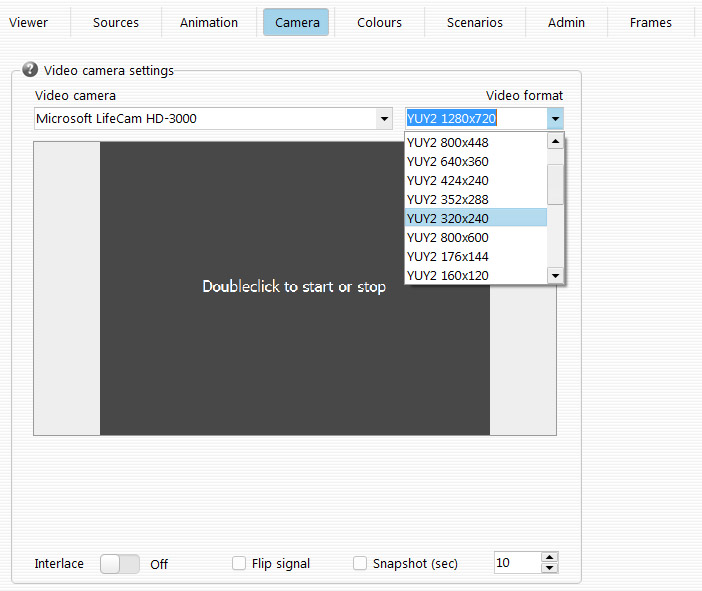
Video camera: select the
camera to activate from the drop-down box.
Video format: select the
appropriate video size of the cam: as rule of thumb: 50% of the monitor size
will be just fine.
Interlace: in some rare
cases a IEEE or USB with interlacing options can be found. Here the interlace
can be set to off. However, in 99% this option is not
required.
Flip signal: to act as a mirror
the web cam should be flipped horizontally. This way interactions are
easier for people who like to wave to the camera.
Snapshot (sec): the interval
time between snapshots. This way a constant stream of pictures can be generated
to fly into the mosaic. It will basically replace a tethered shooting
or photo booth availability. The time between snapshots is set by the up-down
control (here: every 60 seconds a snapshot is made). When this option
is generated the colour of the snapshot will largely vary (depending on the
camera position, distance to the people, etc) and the technician should be
aware that most pictures may be looking very similar in colour. The
mosaic impression may be largely dependent on the final colours! However, each
input picture can be filtered, see here for more
information.